Marksman Chronicle — User Guide
Welcome to the official documentation for Marksman Chronicle. This guide walks you through every major feature of the platform — from managing your firearm collection to running ballistic calculations and organizing tournaments. Use the navigation on the left to jump to any section.
Dashboard
Your at-a-glance shooting overview
The Dashboard is the first page you see after logging in. It gives you a high-level summary of your entire shooting profile — how many firearms and ammo types you own, how many range days you've logged, and a quick look at your recent activity.
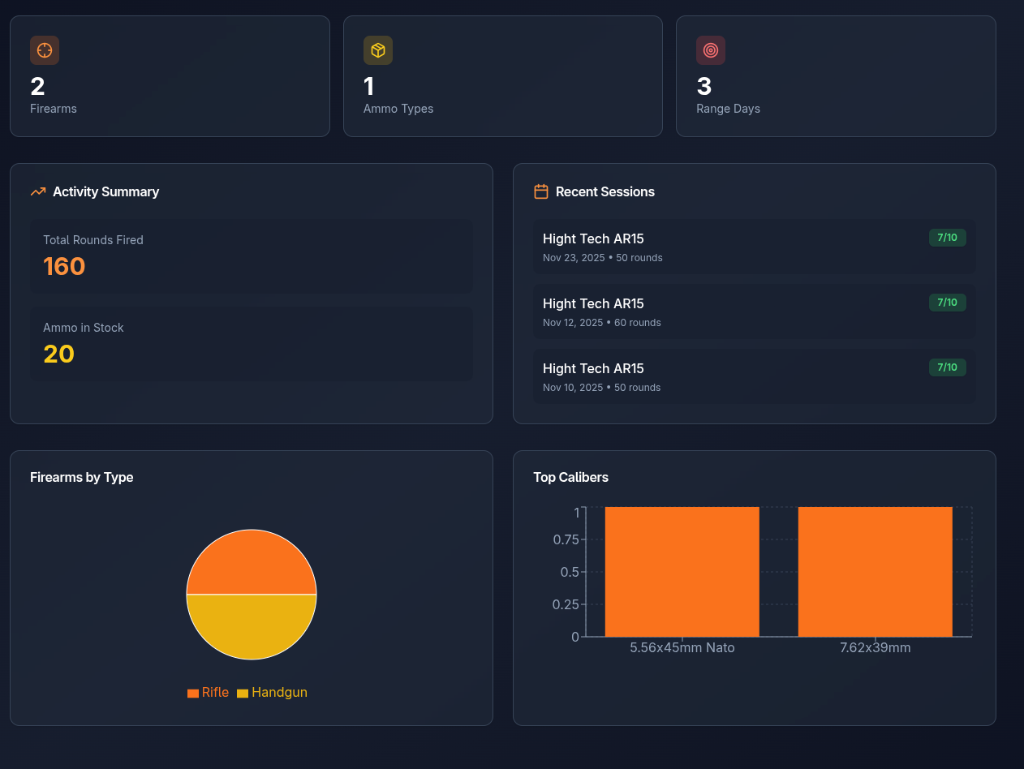
Dashboard showing stat cards, activity summary, recent sessions, and collection charts
What You'll Find
- Stat Cards — Instant counts for Firearms, Ammo Types, and Range Days. Click any card to navigate directly to that section.
- Activity Summary — Shows your total rounds fired across all sessions and your current ammo stock count.
- Recent Sessions — Lists your three most recent shooting sessions with date, rounds fired, and accuracy rating.
- Collection Charts — A pie chart breaking down your firearms by type (Rifle, Handgun, Shotgun, Other) and a bar chart of your top calibers.
The charts only appear once you have at least one firearm added. Start by adding your first firearm in the Firearms section.
Inventory
Full financial and logistical view of your arsenal
The Inventory Dashboard gives you a comprehensive financial and logistical view of everything you own. It tracks the estimated value of your firearms and ammo, provides visual breakdowns by caliber and type, and logs all transactions.
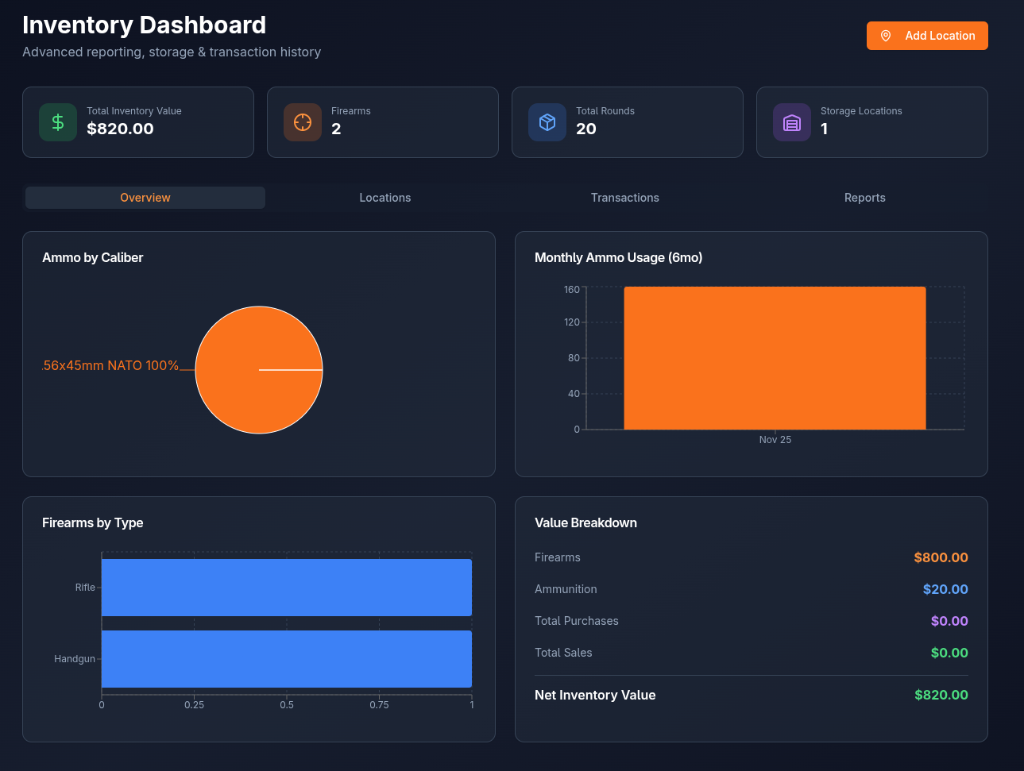
Inventory Dashboard with KPI cards, distribution charts, and transaction history
Tabs
📊 Dashboard Tab
KPI cards for total firearms value, total ammo rounds, and ammo value. Includes charts for ammo by caliber, firearms by type, and monthly ammo usage trends.
🏠 Storage Locations Tab
Add and manage storage locations (Home Safe, Gun Cabinet, Range Locker, Storage Unit, Dealer, etc.) and see what is stored where.
📋 Transactions Tab
Log purchases, sales, transfers, and usage events. Each transaction records quantity, price, date, and counterparty.
📄 Inventory Report Tab
Full tabular view of every firearm and ammo item with purchase prices and current storage locations.
Use the Transactions tab to record every purchase, so the total value figures on the Dashboard tab stay accurate automatically.
Firearms
Manage your entire collection
The Firearms page is your digital collection manager. Add every firearm you own with detailed specs, track rounds fired, and store photos, serial numbers, custom parts, and warranty information — all in one place.
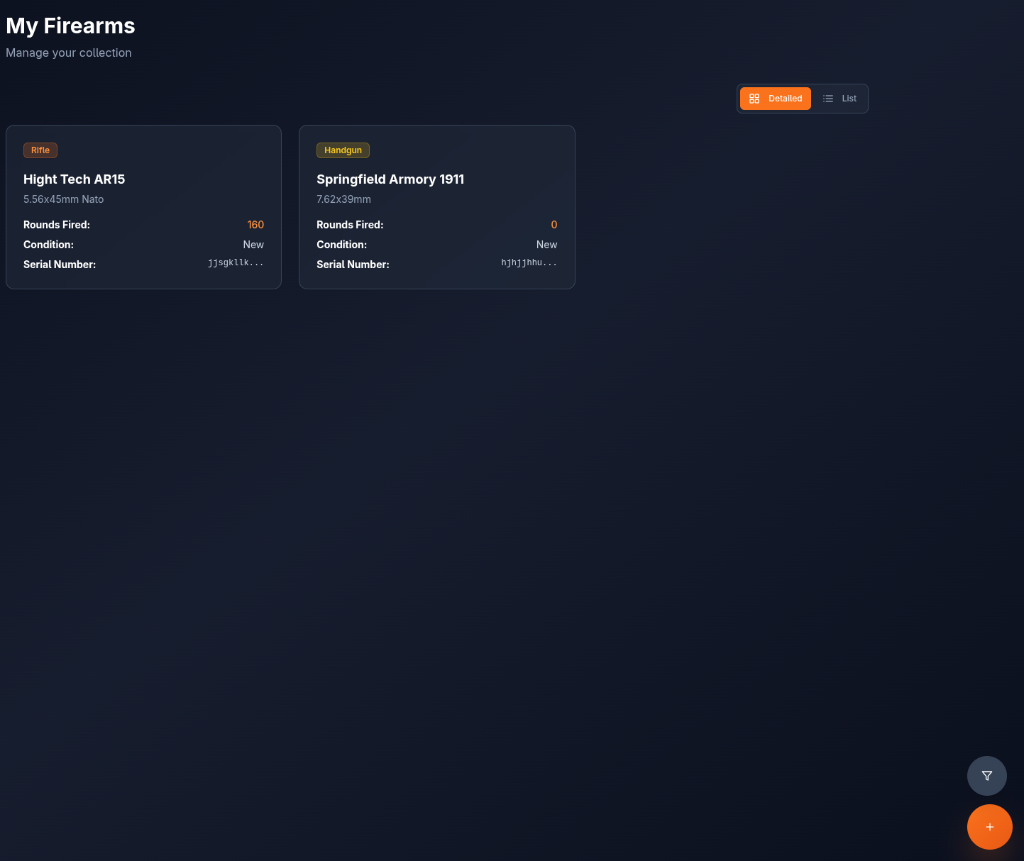
Firearms collection in Detailed card view with type badges and key stats
Adding a Firearm
Click the orange + button
The floating orange circular button in the bottom-right corner opens the Add Firearm form.
Fill in the required fields
Type (Rifle, Handgun, Shotgun, Other), Manufacturer, and Caliber are required. All other fields are optional.
Upload a photo (optional)
Add a photo of your firearm for easy visual identification in your collection.
Add custom parts
In the Custom Parts section, record any aftermarket accessories like optics, grips, or triggers with their cost and install date.
Save
Click 'Add Firearm' to save. The firearm will appear in your collection immediately.
Views & Filtering
- Detailed View — Cards showing type badge, manufacturer/model, caliber, rounds fired, and condition.
- List View — Compact rows for quick scanning when you have many firearms.
- Filter Button — The grey circular button next to + lets you filter by Gun Type, Caliber, Category, and Manufacturer simultaneously.
Click any firearm card to open its Detail view — here you can see full specs, edit the record, log a manual round count update, view linked sessions, and delete the firearm.
Ammo
Track your ammunition inventory
The Ammo page tracks every caliber and brand of ammunition you own. It automatically calculates your total round count from box count, alerts you when stock runs low, and deducts rounds automatically when you log a shooting session.
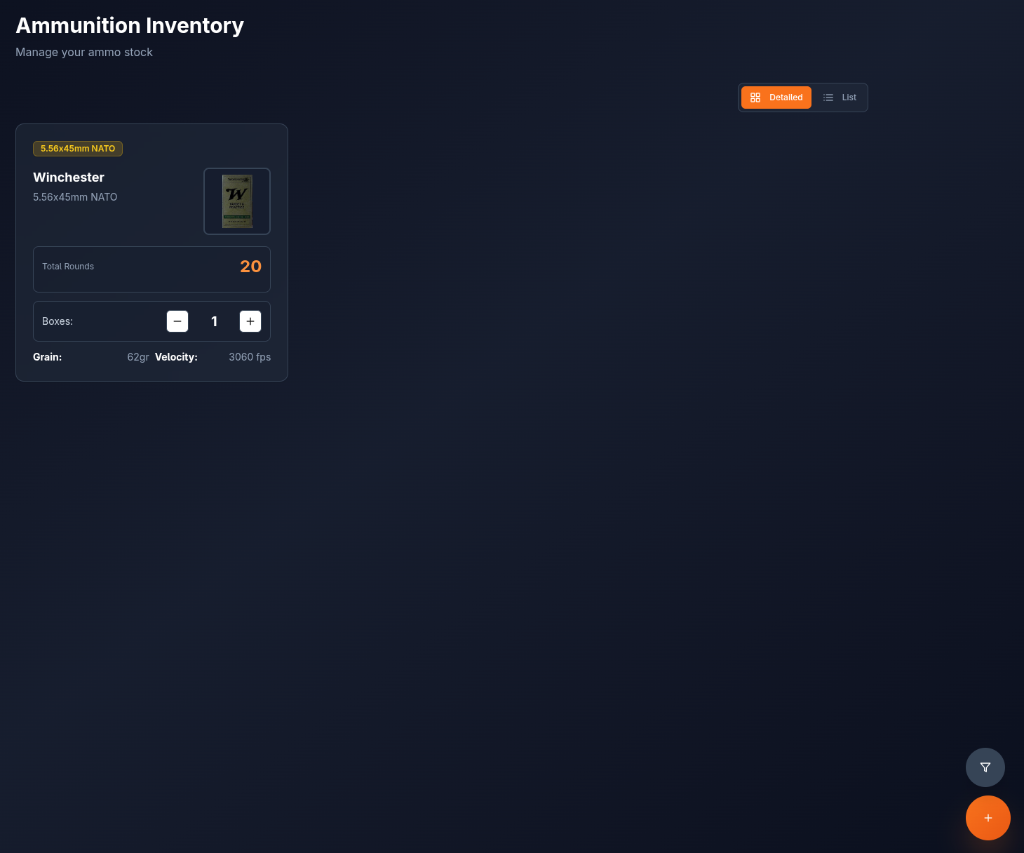
Ammo inventory with round counts, box counters, and caliber badges
Adding Ammunition
Click the orange + button
Opens the Add Ammo form.
Enter Manufacturer, Caliber, and Box Details
Set the manufacturer, caliber, rounds per box, and how many boxes you have. The total round count is calculated automatically.
Set a Low Stock Threshold
Define the round count at which you want to receive a low-stock alert (default: 100 rounds). The app will display a warning badge in the header when you drop below this number.
Enable Reorder Reminder (optional)
Toggle on the Reorder Reminder and enter a preferred vendor. The low-stock alert will include the vendor name for quick reordering.
Managing Stock
- Box Counter (+/−) — Use the plus and minus buttons on each card to adjust your box count directly without opening the edit form.
- Automatic Deduction — When you log a shooting session and select ammo, the rounds fired are automatically subtracted from your stock.
- Smart Deduplication — Adding ammo with the same manufacturer, caliber, grain, and rounds-per-box that already exists will increment your existing entry's box count rather than create a duplicate.
Barcode Scanner — Fast Entry
When adding a new ammo entry, you can scan the barcode on your ammo box to automatically look up and pre-fill the manufacturer, caliber, grain weight, and rounds-per-box fields — no manual typing required.
Open the Add Ammo form
Tap the orange + button on the Ammo page to open the form.
Tap the barcode icon
Look for the barcode scanner icon near the top of the form and tap it to activate your device's camera.
Point your camera at the barcode
Hold the ammo box steady and align the barcode within the scanner frame. The app will detect it automatically.
Review and confirm
Once scanned, the matching fields are pre-filled. Review the data, make any adjustments, then save.
Barcode scanning works best in good lighting. If the scan doesn't auto-detect, try moving the box slightly closer or farther from the camera. You can always fill in fields manually if a barcode isn't recognized.
The amber warning triangle icon in the top navigation bar shows a count of low-stock ammo items. Clicking it shows each item with its current round count and preferred vendor so you can reorder quickly.
Shooting
Log and analyze your range days and hunting trips
The Shooting page is the heart of Marksman Chronicle. Log every range day and hunting trip with detailed data — including chronograph readings, target photos, shot maps, scope adjustments, environmental conditions, and more.
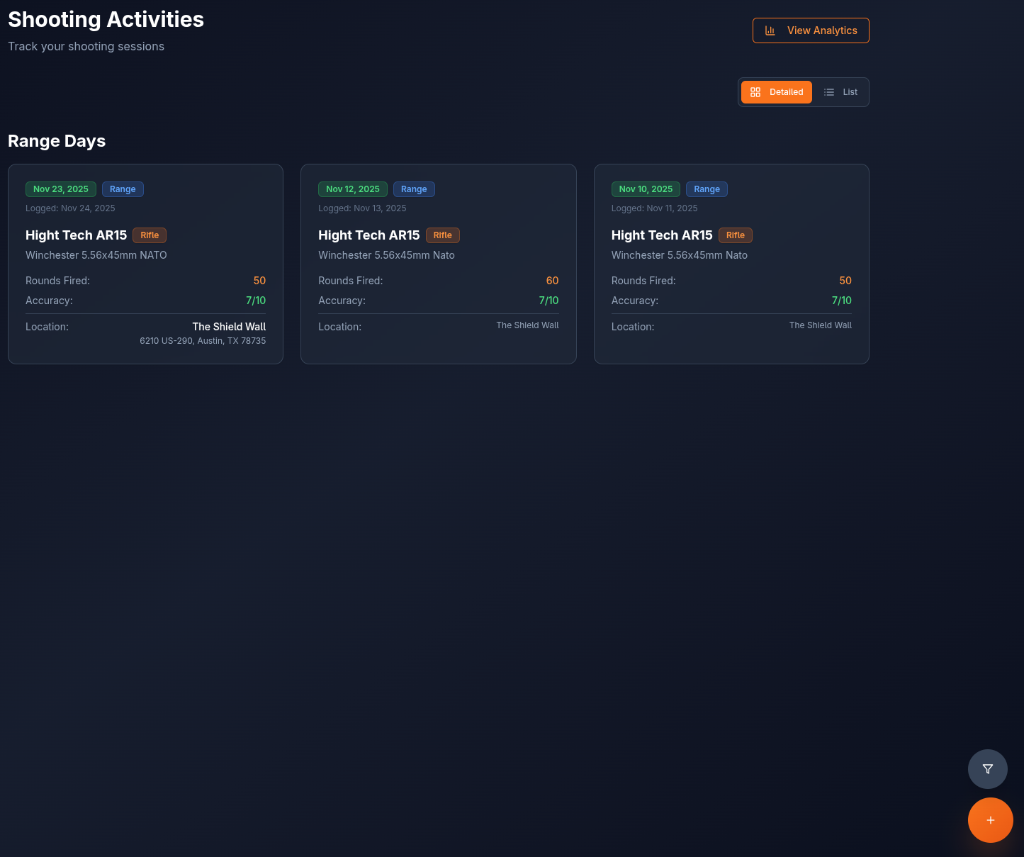
Shooting sessions split into Range Days and Hunting Days with date, firearm, and accuracy info
Logging a Session
Tap the + button and choose activity type
Select Range or Hunting. This controls which fields are shown in the form.
Select firearm and ammo
Pick from your existing collection. The session is automatically linked to the correct firearm and ammo records.
Enter core stats
Add the session date, rounds fired, and accuracy rating (1–10). Optionally add targets with name and distance, location, and weather conditions.
Add chronograph data (optional)
Enter shot-by-shot velocity readings. The app will compute average, extreme spread, and standard deviation automatically.
Upload target photos (optional)
Attach photos of your targets. You can also use the built-in shot mapper to mark hit locations on each target image.
Add scope data (optional)
Record scope make/model, zero distance, adjustment unit (MOA or MIL), and per-distance elevation and windage holds.
Analytics
Click the View Analytics button at the top of the Shooting page to open the analytics panel. It shows:
- Rounds fired over time (line chart)
- Accuracy trend over time
- Sessions by firearm breakdown
- Malfunction tracking
Use the filter button (bottom-right) to narrow sessions by date range, gun type, session type (Range/Hunting), or specific location. Active filters are shown with a red badge count on the filter button.
Tournaments
Organize and compete in range day events
The Tournaments feature lets you create organized shooting events, invite app users as participants, log individual results per shooter (target photos, accuracy, chronograph data), and track final placements.
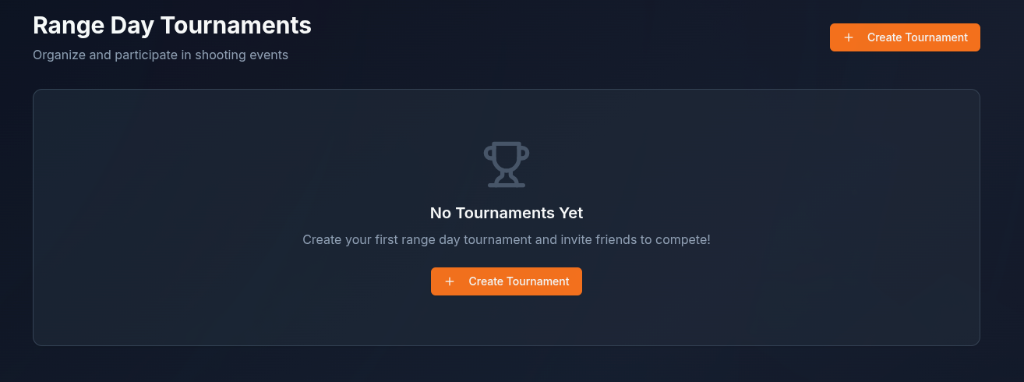
Tournament cards showing name, status badge, date, location, and participant count
Creating a Tournament
Click 'Create Tournament'
The button is in the top-right of the Tournaments page.
Fill in event details
Enter the tournament name, date, time, location (range name), and whether it's indoors or outdoors.
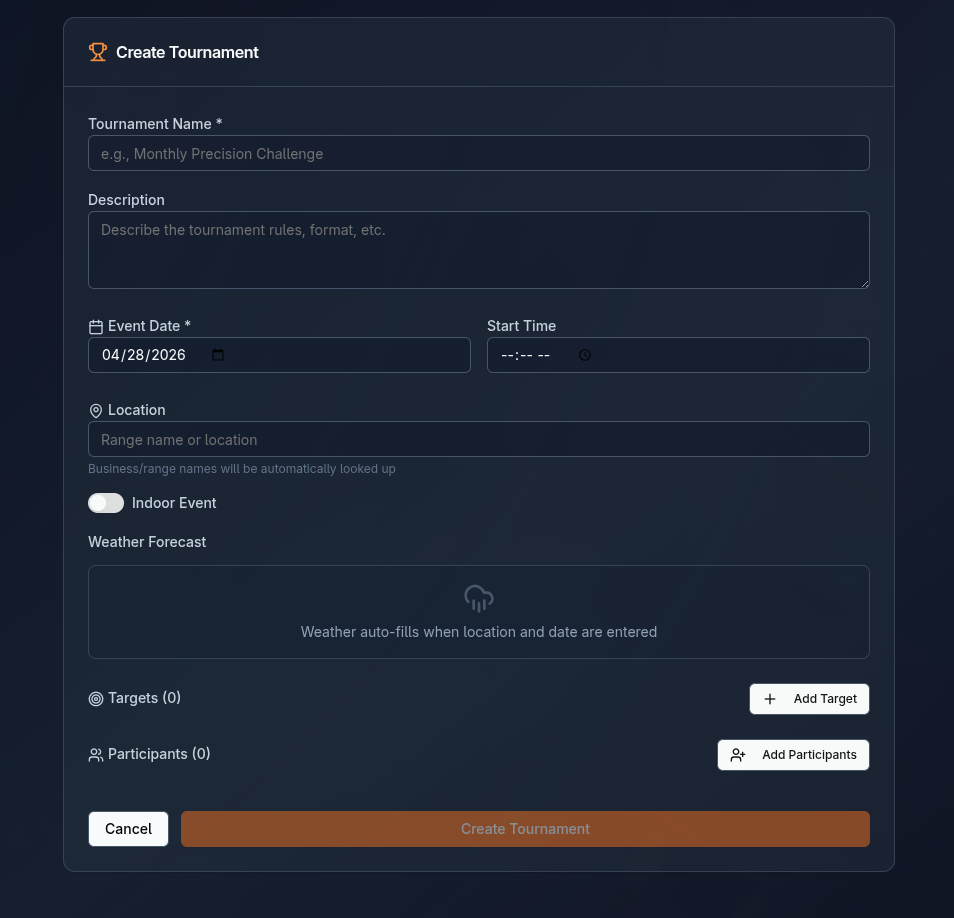
Create Tournament form showing all fields: name, description, date, time, location, targets, and participants
Define targets
Add targets with a name and shooting distance (e.g., '100 yard paper', '300 yard steel'). Each participant will be scored against these same targets.
Save and share
Once created, open the tournament detail page to get the shareable link or invite participants from your friends list.
Managing Participants & Results
- Add Participants — Search for app users by name or add non-app participants manually by name.
- Log Results — For each participant, upload target photos, enter hit/miss per target, rounds fired, accuracy rating, and chronograph data.
- Set Placements — Once shooting is complete, assign a final placement (1st, 2nd, 3rd…) to each participant.
- Status Flow — Move tournaments through: Upcoming → In Progress → Completed.
Only the tournament organizer can edit results and change status. Participants can view the tournament details through their own Tournaments page once they've been added.
Ballistics
Calculate trajectories, DOPE tables, and wind drift
The Ballistic Calculator uses a point-mass numerical solver to compute real-world trajectories for your specific firearm and ammo combination. It accounts for atmospheric conditions and outputs elevation and windage adjustments at every distance — your personal DOPE table.
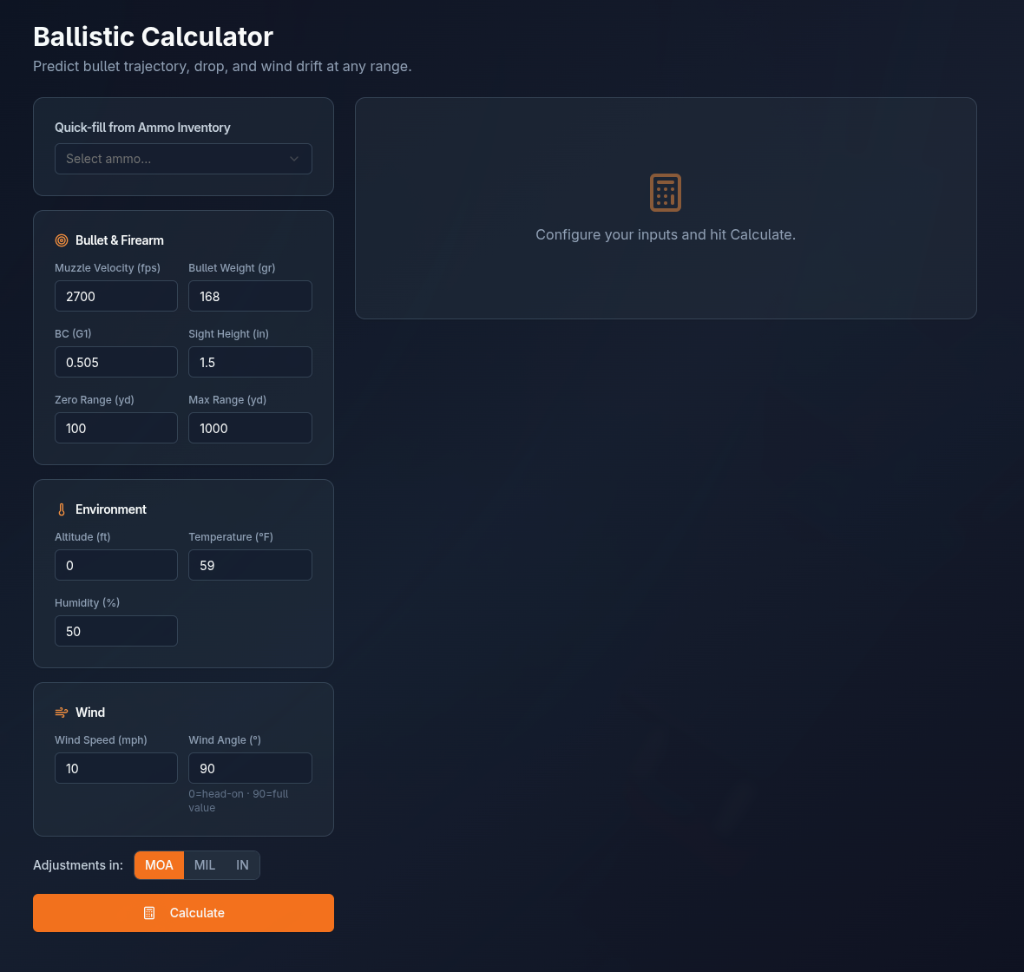
Ballistic Calculator with input panel, trajectory chart, and generated DOPE table
Inputs
🔫 Firearm & Ammo
- Muzzle Velocity (fps)
- Ballistic Coefficient (G1 or G7)
- Bullet Weight (grains)
- Zero Distance (yards)
- Scope Height (inches above bore)
🌤️ Environment
- Temperature (°F)
- Altitude (feet)
- Humidity (%)
- Barometric Pressure (inHg)
- Wind Speed & Direction
Output — DOPE Table
After clicking Calculate, the app generates a DOPE table from your zero distance out to 1,000 yards in configurable increments. Each row shows:
- Distance (yards)
- Elevation adjustment in MOA and MIL
- Wind drift at 10 mph full-value crosswind in MOA and MIL
- Remaining velocity (fps) and energy (ft-lbs)
- Time of flight (seconds)
Saving as a DOPE Sheet
Once calculated, you can save the result as a named DOPE Sheet linked to a specific firearm and ammo combination. Saved DOPE Sheets are accessible from the Firearms detail page and can be referenced in the field without recalculating.
Auto-fill buttons pull your real firearm and ammo data directly from your collection, so you don't have to manually re-enter muzzle velocity or BC every time you open the calculator.